
Transferring photos and videos from an iPhone to a PC.
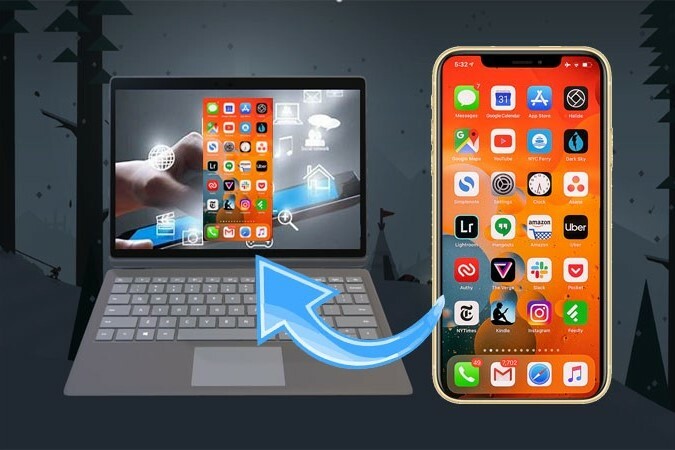
Photos from iPhone to PC: Is it possible?
Want to transfer photos from your iPhone to your PC? Luckily, it's very easy to move photos from your iPhone to your PC, whether you're using a Windows PC or a Mac. Whether it's photos or videos, there are several ways to do this quickly and efficiently. In this guide, we discuss two convenient methods to transfer your iPhone photos to your PC, namely with a USB cable or via iCloud. Both methods are easy to follow and suitable for both beginners and advanced users.
Desktop advice
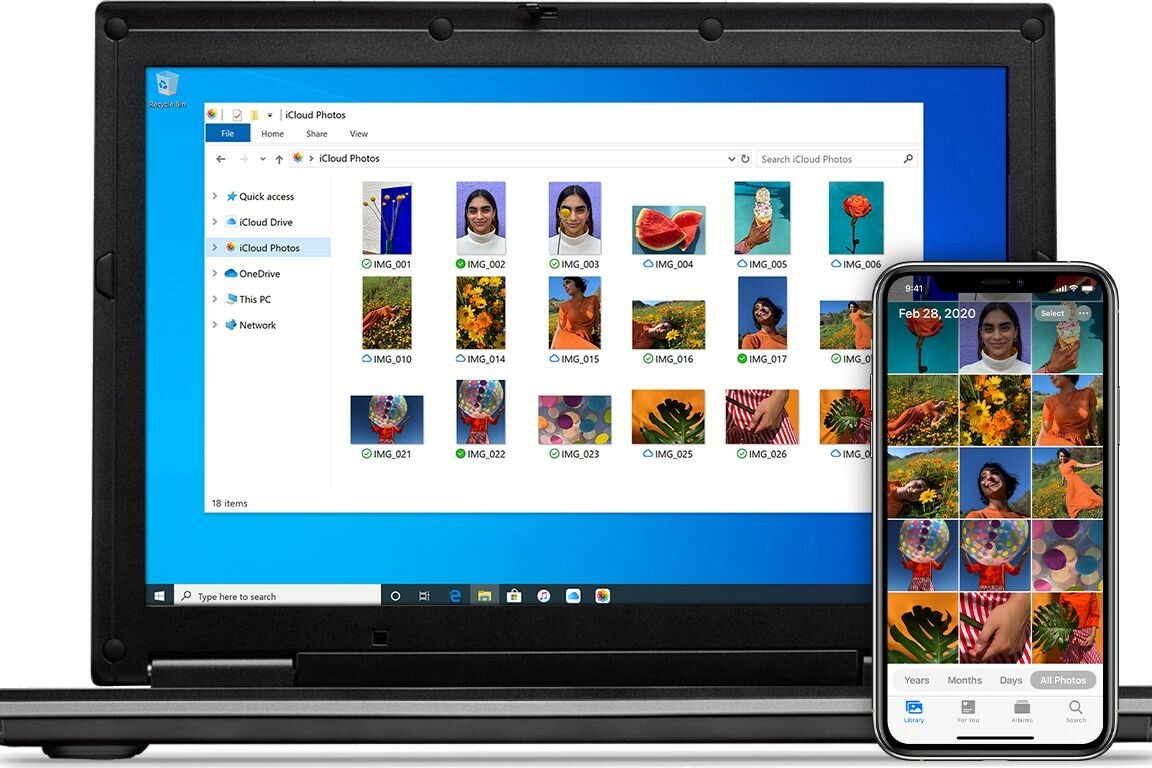
Tip 1: Transfer your photos with a USB cable
One of the easiest ways to transfer photos from your iPhone to your PC is to use a USB cable. Connect your iPhone to your computer via the cable and open File Explorer on your PC. Look for your iPhone under the available devices and navigate to the folder with your photos. You can now easily select the desired photos and copy them to your PC. This method is fast and reliable for transferring large quantities of photos from your iPhone to your PC.
Buy iPhone cables
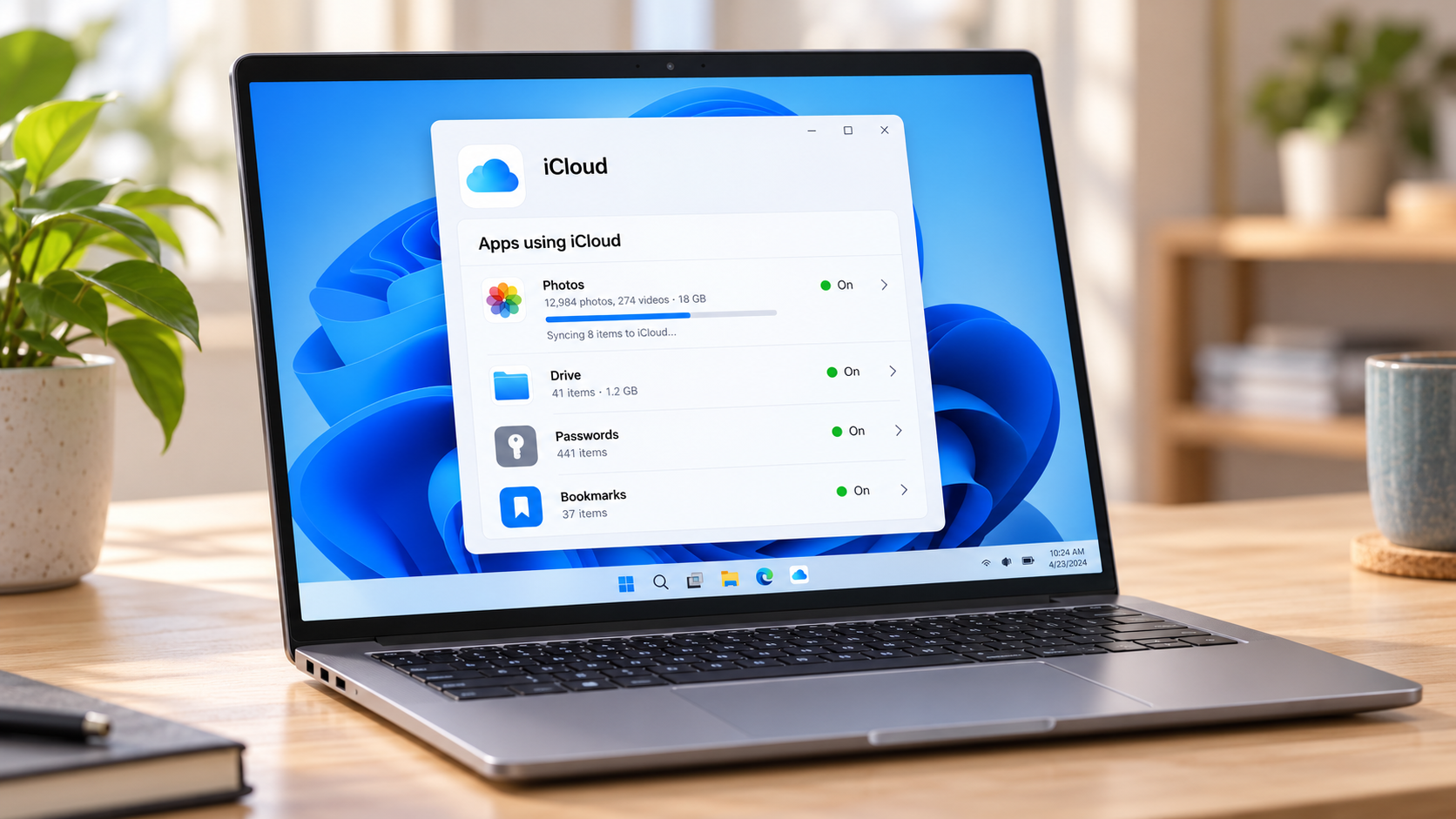
Tip 2: Transfer your photos with iCloud
Another convenient way to transfer your photos from your iPhone to your PC is to use iCloud. With iCloud, you can wirelessly synchronize photos between your iPhone and your computer. Make sure iCloud Photos is enabled on your iPhone, and install the iCloud app on your PC. Once both devices are connected to your iCloud account, your iPhone photos will be automatically synchronized to your PC. This is a convenient option if you regularly want to transfer new photos to your PC without always using a cable.

