
How to take a screenshot on iPhone.
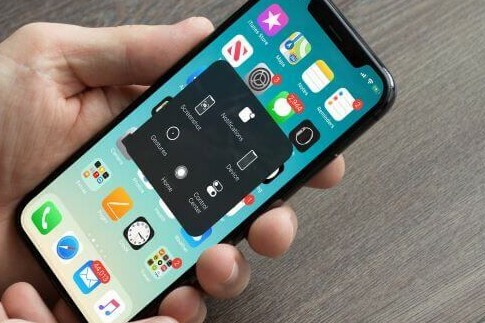
Which buttons do you use for a screenshot?
Taking a screenshot on an iPhone depends on the model you're using:
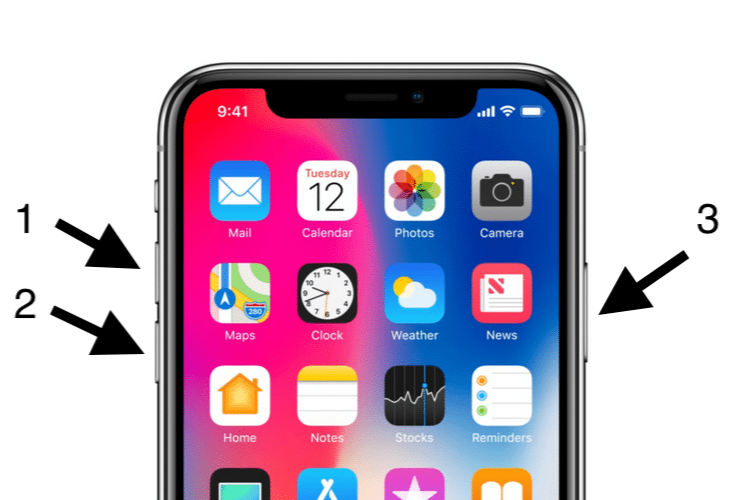
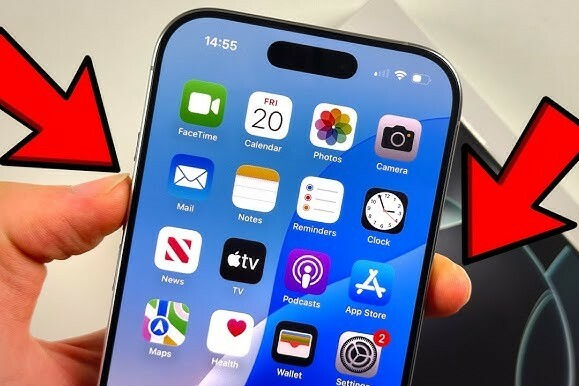
- iPhone with Face ID: Simultaneously press the side button and the volume up button. Quickly release both buttons.
- iPhone with Home button: Simultaneously press the Home button and the side button (or the top button on older models). Quickly release both buttons.
How do you edit a screenshot?
After taking a screenshot, a thumbnail appears in the bottom left corner of the screen. Tap on it to edit the screenshot. You can:
- Draw, highlight, or add text.
- Crop the image.
- Share the screenshot via email or messages.
When you're finished, save the edited screenshot to your photo album or delete it if not needed.
Where are screenshots saved?
All screenshots taken are automatically saved in the Photos app on your iPhone. You can find them in the Screenshots album or in your main photos.
Conclusion: Taking a screenshot is easy with the right button combination. Edit them immediately after taking and find them in the Photos app under the Screenshots album.
iPhone Advice


Buy an iPhone
Condition: Matomas naudotas
Apple iPhone 16 Pro Max - 512GB - 2 Year Warranty
16_desert_titanium
Old Price $1,405.88 $1,124.70 $1,124.70
Condition: Tvarkinga būklė
Apple iPhone 16 Pro Max - 512GB - 2 Year Warranty
16_desert_titanium
Old Price $1,460.74 $1,168.60 No VAT
Condition: Tvarkinga būklė
Apple iPhone 16 Pro Max - 256GB - 2 Year Warranty
16_desert_titanium
Old Price $1,309.87 $1,047.90 $1,047.90
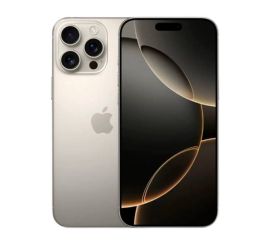
Condition: Tvarkinga būklė
Apple iPhone 16 Pro Max - 256GB - 2 Year Warranty
16_naturel_titanium
Old Price $1,309.87 $1,047.90 $1,047.90
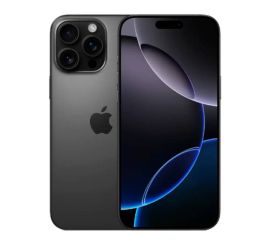
Condition: Matomas naudotas
Apple iPhone 16 Pro Max - 512GB - 2 Year Warranty
16_zwart_titanium
Old Price $1,447.03 $1,157.62 $1,157.62
Condition: Matomi pažeidimai
Apple iPhone 16 Pro Max - 256GB - 2 Year Warranty
16_zwart_titanium
Old Price $1,131.56 $905.25 $905.25