
Forgot Your iMac Password?
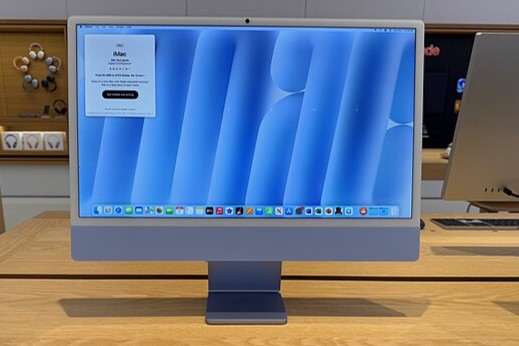
How to reset your iMac password?
If you've forgotten your iMac password, you can recover it using your Apple ID or via Recovery Mode. Follow these steps:
- Option 1: Resetting your password via Apple ID:
- Start up your iMac.
- On the login screen, click on your user account.
- Click the arrow next to 'Forgot your password?'.
- Enter your Apple ID and password to reset the password.
- Option 2: Resetting your password via Recovery Mode:
- Restart your iMac and immediately hold down Command (⌘) + R.
- Select Utilities > Terminal from the menu.
- Type resetpassword and press Enter.
- Follow the instructions to reset your password.
After resetting, restart your iMac and use your new password to log in.
Buy a Refurbished iMac?
What to do if you forget your Apple ID password?
If you've forgotten your Apple ID password, you can recover it via the Apple website:
- Go to iforgot.apple.com.
- Enter your Apple ID (email address).
- Choose a verification method (email, text message, or security questions).
- Follow the steps to reset your password.
You can also do this via your iPhone or iPad through Settings > [Your Name] > Password & Security > Change Password.
How to access your iMac?
If you still can't access your iMac after the above steps:
- Make sure you are using the correct keyboard and language settings.
- Check that the Caps Lock key is not accidentally pressed.
- Try resetting your password again in Recovery Mode.
- Contact Apple Support if you are still experiencing problems.
By carefully resetting your password and keeping your Apple ID up-to-date, you ensure you always have access to your iMac and other Apple devices.
More Apple Advice


Buy a Refurbished Mac?
Black Friday 20% Discount
Condition: Matomi pažeidimai
Apple - iMac - 2010 - 21 inch - Intel Core i3-1e Gen - 8GB - 512GB
Intel Core i3-1st Generation - 21 inch - 8GB - 512GB SSD
Old Price $272.95 $218.36 $180.46